How to Import Calendar
Step-by-step guide for iOS, Google Calendar (Android), and Windows/Outlook devices
iOS (iPhone/iPad/Mac)
Subscribe to Calendar (Recommended)
- 1
Open speedway-calendar.com in browser
Navigate to speedway-calendar.com in Safari
- 2
Select race series
Choose the series you want to subscribe to
- 3
Click "Subscribe"
Tap the Subscribe button
- 4
Calendar app will open on iPhone/iPad/Mac
Your device will automatically open the Calendar app
- 5
Search for Calendar URL
Review the calendar subscription details
- 6
Confirm
Tap "Subscribe" or "Add" to confirm
- 7
Done! ✨
The calendar will automatically update with new events
Example: Subscribing on iPhone
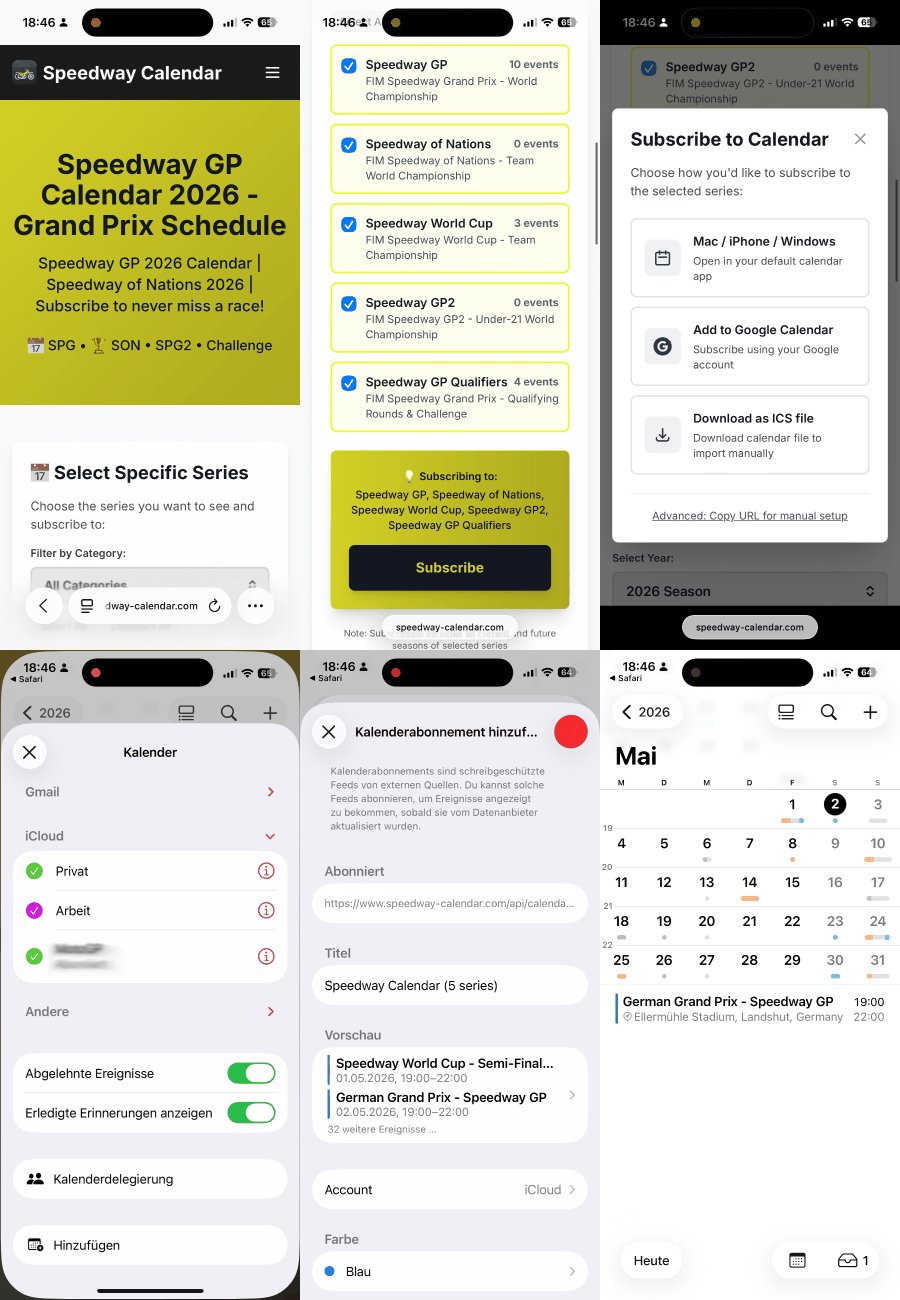
💡 Tip: Subscribed calendars automatically update when new races are added or times change. You don't need to do anything!
Google Calendar (Android)
Subscribe to Calendar (Recommended)
- 1
Open speedway-calendar.com in browser
Navigate to speedway-calendar.com
- 2
Select race series
Choose the series you want to subscribe to
- 3
Click "Subscribe"
Tap the Subscribe button
- 4
Select "Add to Google Calendar"
Choose the Google Calendar option
- 5
Google Calendar will open in Browser
You'll be redirected to calendar.google.com
- 6
Click "Add Calendar"
Confirm the calendar subscription
- 7
Done! ✨
The calendar will sync to all your devices automatically
Example: Adding to Google Calendar
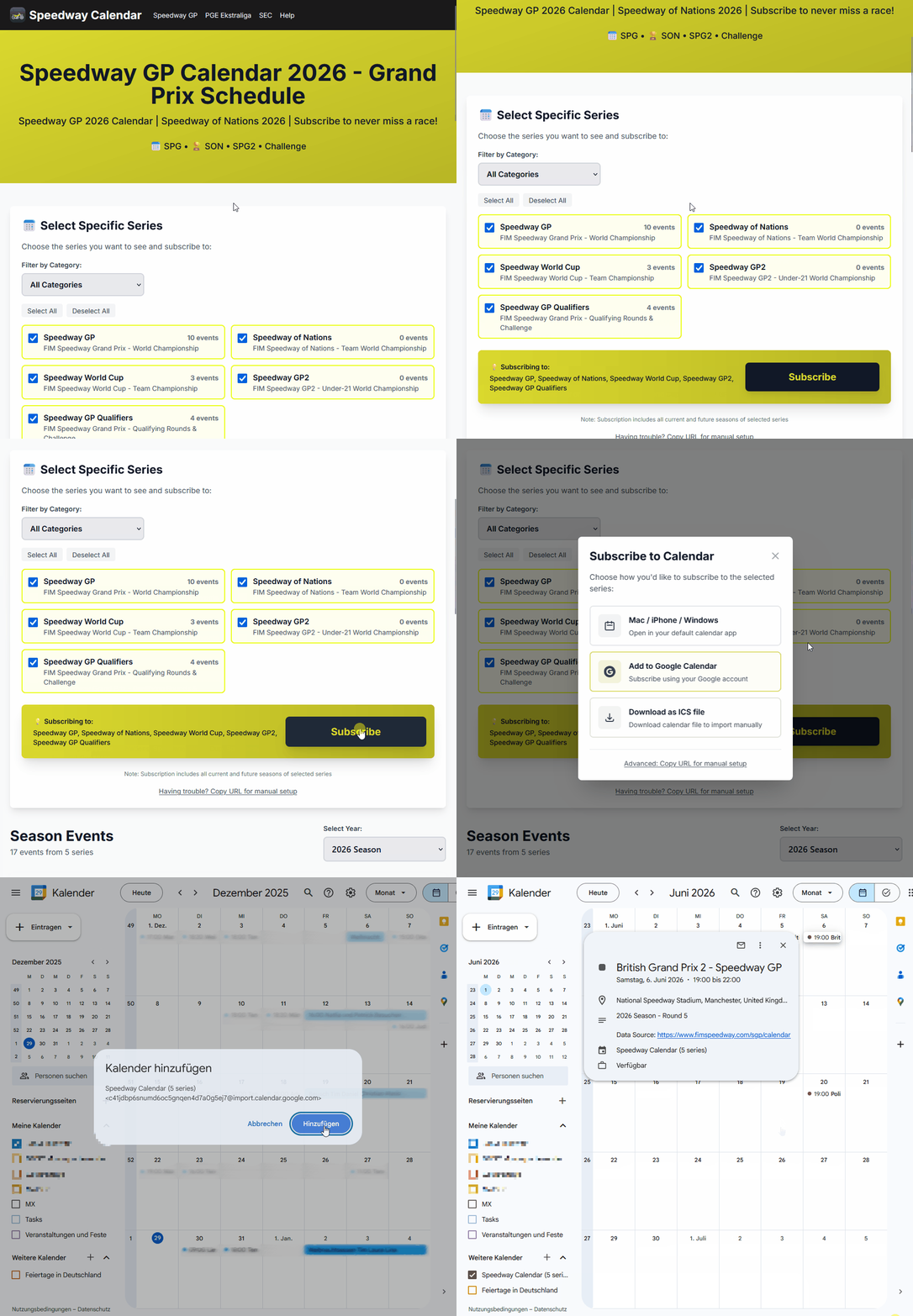
💡 Tip: Once added to Google Calendar on desktop, it will automatically appear on your Android phone and all synced devices!
Windows / Outlook
Subscribe to Calendar (Recommended)
- 1
Open speedway-calendar.com in browser
Navigate to speedway-calendar.com in your browser
- 2
Select race series
Choose the series you want to subscribe to
- 3
Click "Subscribe"
Click the Subscribe button
- 4
Select "Add to Outlook"
Choose the Outlook option
- 5
Outlook will open
Your Outlook app or Outlook.com will launch automatically
- 6
Click "Subscribe"
Confirm the calendar subscription in Outlook
- 7
Done! ✨
The calendar will sync across all your Windows and Outlook devices
Example: Adding to Outlook
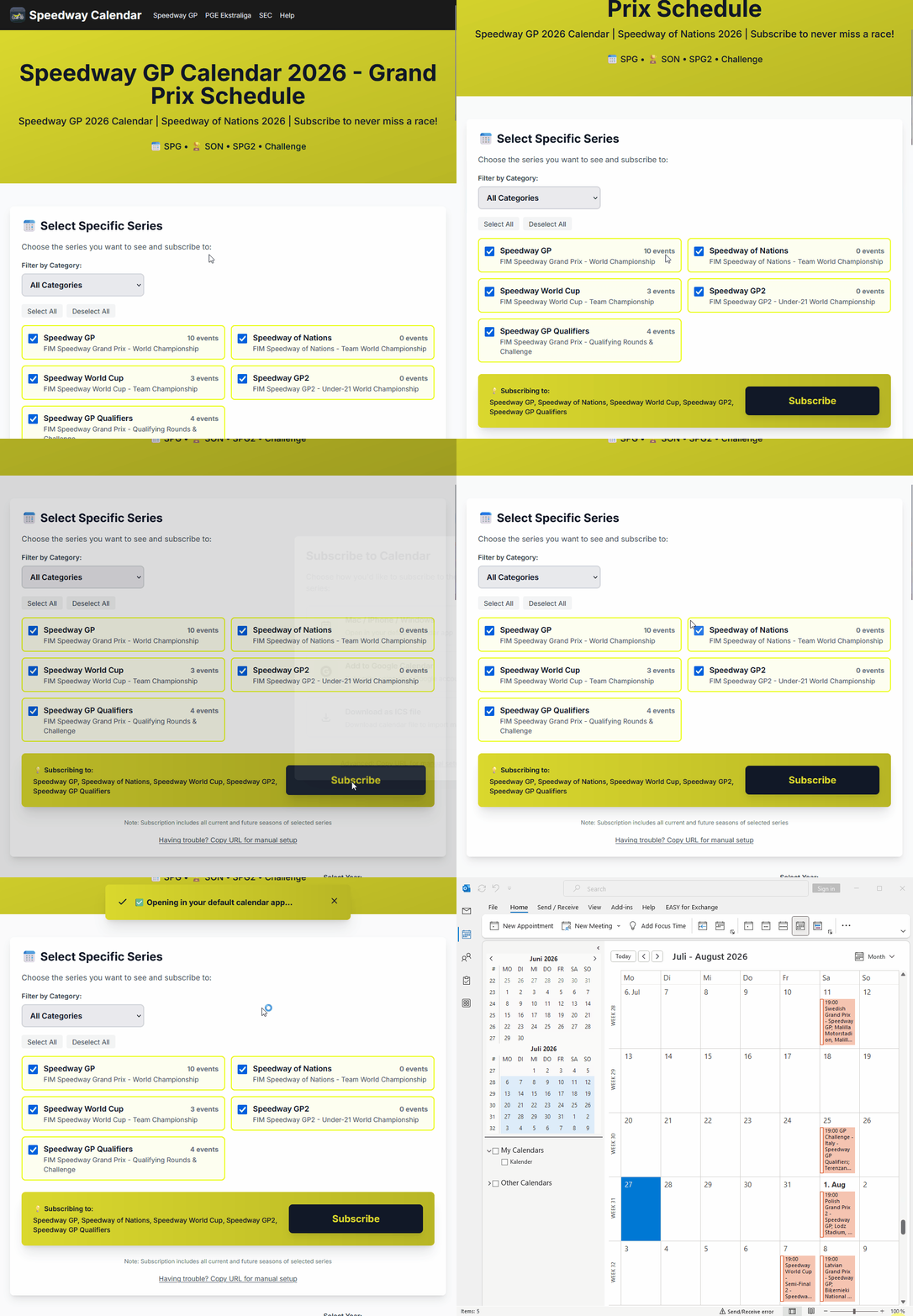
💡 Tip: Once subscribed in Outlook, the calendar will automatically sync across all devices connected to your Microsoft account!
Embed on your website
- 1
Configure your widget
Go to our embed configurator page
- 2
Copy the code
Select options and copy the iframe code
- 3
Paste into your site
Paste the code into your website's HTML
Troubleshooting
Calendar not updating?
Calendar apps can take up to 24 hours to refresh subscribed calendars. You can force a refresh in your calendar app settings.
Events not showing on Android?
Make sure you added the subscription via Google Calendar on desktop (calendar.google.com). Then enable sync on your Android device.
Can't open .ics file?
Make sure you have a calendar app installed. On iOS, use the built-in Calendar app. On Android, use Google Calendar, or write to contact@speedway-calendar.com.